AI inside M‑Files

AI that answers from your records

CtrlScout is an AI chat inside M‑Files, beside the record you have open. Ask it to summarise or compare documents, find and count records, or draft an e-mail. It works from what M‑Files knows about each record, and only with what the person asking may see.

  • Runs as the person asking, at every step
  • A European provider, Azure, or your own servers
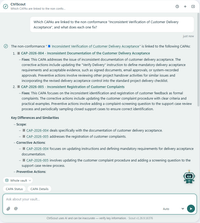
Three views of the AI inside M-Files: the chat answering which CAPAs are linked to a non conformance and what each one fixes, a bar chart of documents by class with the count above it, and a metadata card with the AI's suggested description under the empty field and the popover showing where the value came from
The AI chat in M-Files answering which CAPAs are linked to the non conformance Inconsistent Verification of Customer Delivery Acceptance and what each one fixes, with the two CAPAs named as links to their records
Permissions respected at every step

Answers from the details on each record

M‑Files already knows a lot about every quality record: what kind of record it is, where it stands in its workflow, the people and dates on it, and what it is linked to. The assistant works from that. Ask which CAPAs came out of a non conformance, and it follows the links recorded in M‑Files.

  • Searches, reads and counts as you — Every search, document read, link followed and count runs with the permissions of the person asking, so records they may not open never reach the answer.
  • Changes only after you approve — A change runs as the person who approves it, and only once they have.
Right beside your records

Everyday help with your quality records, one question at a time

Ask in plain words in the M‑Files pane, or right-click a document. The assistant answers the question you ask, and you decide what happens next.

The AI chat asked what a procedure is related to. It answers that eleven objects reference the SOP, that two open non conformances still point at it and an approval record is waiting on a signature, and that one object it could not open with the person's permissions is left out, then lists the records it read as sources

Ask what a procedure is related to. The assistant follows the links in M‑Files, says what still points at it, and lists the records it opened. What the person may not open stays out, and the answer says so.

The AI chat asked how many documents there are in each class. It answers with the total and a bar chart of documents by class, SOP, Policy, Procedure and Report

A count and a chart for the report

Ask how many documents there are in each class, or how many CAPAs are at each stage. The assistant counts the records the person asking may see, and draws the chart.

The AI chat asked, in Danish, for a status e-mail about the delivery acceptance. It shows the draft with the recipient, the subject and three status points, a Download .eml draft button, and the procedure it drew on as its source

The e-mail, drafted from what you just found

After a search or a summary, ask for the e-mail. Download the draft and it opens in Outlook, ready to edit and send. The assistant fills in only addresses it has seen in the conversation.

The metadata card of a document just pulled into VisualQMS, in Draft, with the AI's suggested process area and description shown in lilac boxes under the empty fields, a suggested Keywords property as a button, and a popover open on the description asking whether to add the value, with the source of the value and a note that it was AI-generated

Details suggested on the card, for you to accept

When a document is pulled into VisualQMS, the assistant reads it and suggests its details on the metadata card: the description, the process area, keywords. Each suggestion shows where its value came from, and you accept the right ones.

Before you read it all

Summaries, comparisons and searches in plain words

Summarise first

Right-click a long procedure or audit report and ask for a summary before you read it in full.

Compare versions or documents

Select two versions of a procedure, or two documents, and the assistant tells you how their content differs.

Ask who changed it

Ask who changed a document and when, and the answer comes from its version history.

Open long lists in the M‑Files listing

Ask for the CAPAs still waiting for implementation, and the search is built from the details your records already have. Long lists open in the M‑Files listing.

Details filled in on incoming documents

When documents are pulled into VisualQMS, the AI suggests their class and details on the metadata card, with the assistant or M‑Files' Aino. Accept the right ones and ignore the rest.

Change records after a preview

Describe the change, say "set the department to Quality on these three recorded issues". The assistant shows each record with its old and new value, and changes nothing until you approve them. Your administrator switches this on.

See it trace a CAPA and count cases in a demo

EU, cloud or in-house

You choose where the AI runs, down to your own servers

Each question, and the content the assistant reads to answer it, goes to the AI service chosen for your M‑Files. Pick the one your data policy allows.

Scaleway

A European AI provider, hosted in the EU.

OpenAI

Models from OpenAI, connected by your administrator.

Azure AI Foundry

Models you run in Microsoft's Azure AI Foundry.

Your own servers

A model on your own servers. With M‑Files on your servers too, your data never leaves the company.

Find out what AI your set-up allows

Tell us how your M‑Files is set up, or that you are starting from nothing, and we tell you which AI options are open to you, including running it on your own servers. We answer the same working day.

Questions about AI and VisualQMS

What is CtrlScout?
The AI assistant we supply alongside VisualQMS. It works in the right-hand pane of M‑Files, beside your records. It summarises and compares documents, finds and counts records, draws charts and drafts e-mails, and it can prepare changes and suggest metadata for a person to approve. Changes, document analysis, search by meaning and metadata suggestions are licensed parts, each switched on separately, and metadata suggestions are an optional part installed on their own. Tell us which you want and we add them to your quote.
Does it work on its own, like an AI agent?
No. It is an AI chat: it works on the question someone asks and answers it in the panel. When a question needs more steps than it is allowed, it stops and asks whether to keep going or to answer with what it has. A change it prepares waits for a person to approve it. Compliance decisions, and the review and approval of QMS records, stay with your people and your workflows.
Does the AI respect our permissions?
Yes, at every step of an answer. Every search, document read, followed link and count runs as the person asking, and so does every change. Anything the application keeps for speed, such as a cached summary or the index for search by meaning, is checked again as the person asking before it reaches them. Records the person may not open are left out, and when a linked record is left out, the answer says so. Conversations are visible only to the person who had them, and administrators can limit the assistant to chosen user groups. M‑Files Aino uses your vault permissions when it creates an answer, and M‑Files states that Microsoft 365 Copilot can only see content a user is authorised to view.
Which AI services can it use, and where does our content go?
You choose where the AI runs: Scaleway (a European provider, hosted in the EU), OpenAI, Azure AI Foundry, or a model on your own servers. The questions, and the content CtrlScout reads to answer them, go to that service. Files a user attaches from their own computer go there too, without passing through the vault, and attachments can be switched off. If you switch on search by meaning, the documents you choose are indexed in advance: their text goes to the service that prepares the index, and the index is kept in a store you run or in OpenAI. The index is built by the application itself, and every hit is checked again as the person asking before it is used.
Can it run entirely on our own servers?
Yes. When M‑Files and the AI model both run on your own servers, your data never leaves the company. If you switch on search by meaning, its index and the service that prepares it must run there too. The model must be served through an OpenAI-compatible interface and be able to call tools, and the answers are only as good as the model you choose.
Can CtrlScout change or create records?
Only once your administrator switches it on. Each change is a preview a person approves, and it runs under that person's rights, 10 records at a time by default. If the person could not make the change by hand in M‑Files, CtrlScout cannot make it either: it fails for the same reason. It never changes a record's class or the fields M‑Files maintains itself, such as created and last modified. Undo changes rolls a change back as a new version, with the history kept, but skips records that were edited, checked out or deleted since. Creating records is switched on separately. It creates metadata only, never files, either from an approval card or, when values are missing, through M‑Files' New Object window. A creation cannot be undone.
How do metadata suggestions work?
They come from an optional part of CtrlScout, installed separately. Your administrator decides which fields it suggests values for and what to look for. Suggestions appear on the metadata card when a document is added or someone clicks Analyze. By default each value waits for someone to accept it, and an administrator can let confident values be filled in directly. This is separate from M‑Files' own Metadata Agent.
Can the answers be wrong?
Yes, like any AI, and the panel says so. Counts are made from the records in M‑Files, not estimated, and each answer says what was counted. Every record it used is a link you can open, and when an answer comes from a search, you can open that search in the M‑Files listing.
We already have M‑Files Aino. Why would we add CtrlScout?
Aino is M‑Files' own AI assistant, and it is available to VisualQMS customers. CtrlScout is built a little further into how you work in M‑Files: it counts records and draws charts, opens searches in the M‑Files listing, prepares changes for a person to approve, drafts e-mails and suggests metadata on the card. It also runs on the AI service you choose, including a model on your own servers.