
Make sure the new procedure gets read
Choose who must read each SOP by role, department, country or any other detail about the employee. When a new version is published, they get a training record, and a portal beside it can spell out each step. Their manager sees who is overdue.
- Assigned by any detail about the employee
- Read again when the document changes
- The manager sees who is overdue

Set the rule once and the right people get their reading list
A training rule picks people by anything recorded about them: role, department, country, user group and so on. Before it goes live, VisualQMS shows how many people it will reach, so a mistake shows early.
-
Set the rule
Choose what has to be read and who it applies to, for example every engineer in Australia, how long a completed training stays valid and how long people have to do it.
-
Everyone gets a record
Each person the rule covers gets a training record with a due date, and so does anyone who joins later, changes role or moves to another department or country, unless they already hold valid training for it. If the rule says so, a new version of the document starts a new round.
-
Read and confirm
Employee
The employee finds the record on their own training list, reads the document or process map and confirms it as read and understood. Where needed, they also confirm the instructions and forms linked to the SOP.
-
Overdue goes to the manager
A record still open when its grace period ends is marked overdue. The employee's manager is notified, and the manager's manager too if you want.
Spell out each step beside the training record
We use portals to make training easier for people who rarely use the system. Beside the training record, a portal can list each step and give them a button that opens the document. The standard M‑Files card shows the same record as a list of fields.

The portal spells out what to do and opens the document with one button. The standard card shows the same record as a list of fields.
See whose training is overdue on one board
Each training record sits in the column for its state, with the person and the grace date on the card, and overdue ones stand in a column of their own. Every record also names the document and its version, so at the audit you can show who has read which version. Views can show a person's own training, a department's, the training of the people you manage, or what is overdue.
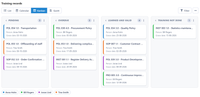
The count at the top of each column shows how many records are in that state. The same records also open as a list, on a calendar or as a gantt chart.
Questions about training records
How is training management in a QMS different from an LMS?
What happens to training records when a procedure is revised?
Can training repeat on a schedule?
What happens when someone joins or changes role?
What do we need to get started?
Can people who rarely use the system complete their training?
How do we show training records to an auditor?
Is training management part of the core?
Is VisualQMS certified, or does it make us compliant?
Add the quality activities you need
Internal Audit Management
Know where every audit stands, with reminders for the people involved and observations tied to CAPA.
See Internal Audit ManagementIssue Management
Record an issue or a customer complaint, decide how each kind is handled, and keep it tied to the CAPA it leads to.
See Issue ManagementCAPA Management
Corrective and preventive actions with a person responsible and a deadline, linked to the finding that started them.
See CAPA ManagementChange Management
Change requests that say what changes and why, approved before a controlled document is edited.
See Change ManagementDeviation Management
Deviations handled the same way each time, and linked to CAPA.
See Deviation ManagementNon Conformance Management
Non conformances recorded in their own module, taken from registration to review and approval, and linked to the CAPAs that fix them.
See Non Conformance ManagementRisk Management
Risk assessments that follow your own method and stay linked to the CAPAs, changes and documents they concern.
See Risk Management