
Fits the systems you already run
Procedures are written in Word and drafted together in OneDrive, emails are filed from Outlook, and signed documents come back from DocuSign or Adobe Acrobat Sign by themselves. An AI assistant inside M‑Files answers from your own records, and customers and products can come from your ERP.
Made and implemented by Solution Management, an authorised M‑Files reseller and an Elements.cloud reseller.
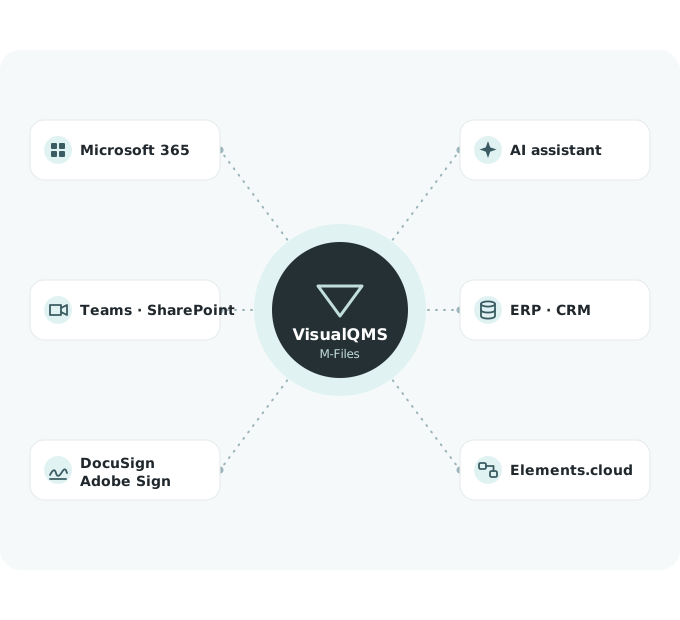
Where your quality work meets your other systems
You don't need M‑Files already: it comes with VisualQMS. Tell us what else you run, and we tell you what each connection needs.
 Word, Excel and PowerPoint
Click edit and the controlled document opens in Office. The approval date, the approver and the version are written into the file.
Word, Excel and PowerPoint
Click edit and the controlled document opens in Office. The approval date, the approver and the version are written into the file.
 Co-authoring in OneDrive
Several people write in the same draft at once, people outside the company too, and it comes back to M‑Files as a new version.
Co-authoring in OneDrive
Several people write in the same draft at once, people outside the company too, and it comes back to M‑Files as a new version.
 DocuSign and Adobe Acrobat Sign
Send a document for signature, and the signed version comes back into M‑Files on its own.
DocuSign and Adobe Acrobat Sign
Send a document for signature, and the signed version comes back into M‑Files on its own.
 Microsoft Teams
Open a controlled document from Teams, and search M‑Files without leaving it.
Microsoft Teams
Open a controlled document from Teams, and search M‑Files without leaving it.
 Outlook
File emails and their attachments from Outlook, and read a whole email thread together in M‑Files. M‑Files picks up the customer or contact from the email.
Outlook
File emails and their attachments from Outlook, and read a whole email thread together in M‑Files. M‑Files picks up the customer or contact from the email.
 SharePoint
Make the documents a team needs available through SharePoint.
SharePoint
Make the documents a team needs available through SharePoint.
 ERP and CRM
Customers, products and suppliers from your ERP. We have connected Microsoft Dynamics and Maconomy, M‑Files has connectors for SAP, Dynamics 365 and Salesforce, and any system with an SQL database behind it can be connected directly. For anything else we build the connection.
ERP and CRM
Customers, products and suppliers from your ERP. We have connected Microsoft Dynamics and Maconomy, M‑Files has connectors for SAP, Dynamics 365 and Salesforce, and any system with an SQL database behind it can be connected directly. For anything else we build the connection.
 Microsoft Entra
If your roles and employee details are kept in Entra, its groups and the details you choose are synchronised to VisualQMS. Training rules use them, so training follows people when they change role.
Microsoft Entra
If your roles and employee details are kept in Entra, its groups and the details you choose are synchronised to VisualQMS. Training rules use them, so training follows people when they change role.
 Elements.cloud
The maps drawn there open in VisualQMS, with each activity linked to its procedure.
Elements.cloud
The maps drawn there open in VisualQMS, with each activity linked to its procedure.
AI from your records, on the model you choose
The AI assistant we supply alongside VisualQMS sits inside M‑Files, in the pane beside the record you have open and on its right-click menu. It answers from that record, the view you are in or the whole vault, follows the links between cases and counts them by their fields. It searches and reads as the person asking, so it only ever sees what they may see.
- On the model you choose — You can use Scaleway (a European provider, hosted in the EU), OpenAI or Azure AI Foundry, or run a model on your own servers. With M‑Files, the model and any search index on your own servers, what it reads stays inside your company.
- Trace a case — Ask "Which CAPAs are linked to this non conformance, and what does each one fix?" and each CAPA comes back as a link to its record.
- Count by stage — Count open CAPAs or complaints by stage, as a chart you can copy into a report.
- Summarise or compare — Summarise a procedure, or compare two versions, from the right-click menu.

Keep finding your existing documents while you move in
M‑Files connects to your file shares and SharePoint Online, so people can find documents where they are, and you move them in at your own pace.
-
Step 1: Find them where they are
Once connected, people search and open the documents on your file shares and in SharePoint Online from M‑Files. In M‑Files Cloud, file shares are reached through M‑Files Ground Link.
-
Step 2: Give the important ones details
Give a document its details, and it shows up in your views while the file stays where it is. From then on, changes made through M‑Files are kept in its version history.
-
Step 3: Move them in when you're ready
Bring documents in one department or team at a time. They keep their old numbers, and their details are added in bulk from Excel. We bring them in with you, using the migration tools.
Process maps that keep up with your procedures
Your processes are drawn in Elements.cloud, and each activity on the map opens the approved procedure behind it. When a new version of a procedure is approved and published, the activity opens the new one, and the map does not need to be republished. The process maps are a core module.

Emails, scans and data from your other systems
A folder that files itself
Files saved to a shared folder, such as the one your scanner saves to, are picked up and filed with their details. The details can be set for the folder, or read from the file.
An inbox that files itself
Where M‑Files runs on your own servers, point it at a mailbox in Microsoft 365, Gmail or another IMAP service, and each email that comes in is filed with its attachments. The details are set for that mailbox, or read from the email.
Lists that stay in step
M‑Files can keep a list such as customers, products or employees in sync with an external database.
Another system you rely on
Tell us which system and what data you have in mind, and we tell you how VisualQMS can connect to it, through APIs, direct database (ODBC) connections or other methods. If needed, we tailor VisualQMS to it.