
Show what came of every deviation
The inspector picks a deviation or a complaint and asks what was done about it. In VisualQMS you follow it to its CAPA where it needed one, any change to the SOP, and who has acknowledged the new version. Every change sits in the version history.
- Already delivered in life sciences
- SOPs, deviations and training linked
- Every change in the version history

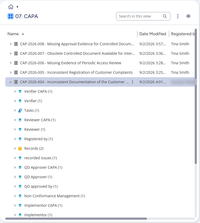
Three questions, three places to look
An inspector rarely asks for one document. They ask for three things: the SOP that was in force, the training records of the people who followed it, and what came of the deviation or complaint they have picked from your log. When SOPs are signed on paper or sit on a shared drive, deviations are in a spreadsheet and the training matrix is in another, each answer means a search while the inspector waits.
In VisualQMS the deviation stays linked to its CAPA and to the SOP it concerns. From the SOP, the training records show who has acknowledged which version.
One approved SOP, and every change on record
Only the approved version in use
People who work to the SOP see only the latest published version, and a link from a process activity or a related document always opens the newest approved one. The version number, the approver and the approval date are written into the file, so a printed copy can be checked.
Every change leaves a row
Each time an SOP is checked back in, or its details change, a row is added to its version history. The content and details of earlier versions can't be edited.
Locked while one person edits
Start editing an SOP and it is locked to you until you check it back in, so nobody else can change it at the same time. Co-authoring is the exception. Once it goes for approval, it turns read-only.
Approved before it is published
Review and approval follow your own procedure, parallel or sequential, with one approver or all of them.
Periodic review on time
Each SOP carries a next review date, for example 36 months after publication. When the date comes close, the owners are alerted and the review starts.
Found by what it is
Find an SOP by process, department or the standard clause it relates to, not by the folder it sits in.
Every deviation followed to closure
A deviation in production, the warehouse or the lab goes through the same steps every time, and gets a CAPA where it needs one.
-
Register it
Record what happened, which product or customer it concerns, and the other details your procedure asks for. Products and customers can come from your ERP.
-
The person responsible acts
The task goes to the people designated for it, with reminders before the deadline.
-
Look into the cause
Link a CAPA if the fix needs one.
-
Follow the CAPA
The CAPA runs through its own steps, such as implementation and verification, before it is closed.
-
Each deviation linked to what came of it
The deviation, any CAPA and the SOP they concern refer to each other. A board can show how many CAPAs are at each step, who is carrying each one out and by when, so the late ones are visible before an inspector finds them. Non conformances have a module of their own, for companies that keep them apart from deviations.
An SOP change that brings the retraining with it
Where your procedures require it, an SOP can be edited only once its change request is approved.
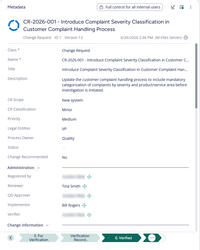
Approved before anyone edits the SOP
The change request records the change, its scope, classification, priority and process owner. It moves through steps such as review, approval, implementation and verification.
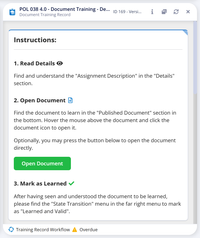
The people it names read the new version
When the revised SOP is published, and the training rule says so, the people it names are asked to read and acknowledge the new version. A record still open when its grace period ends goes to their manager.
- Related instructions and forms are linked to the SOP, and the training can include them too.
- With the process maps, the activity linked to the SOP opens the new version from the moment it is published, and the map doesn't need to be republished.
What a validation finds already in place
Customers have validated VisualQMS for their intended use, so it can be done. A validation covers your own set-up and how you use it, so your company is responsible for it, sized to the risk. Most of what it checks is what the system does every day, and each point below says what stays yours. Tell us early what your validation has to cover, and we will go through it for your set-up.
Only the current, approved SOP in use
Approval comes before publication, people see the latest published version, and links open the newest approved one. The version and approval date are written into the file. What stays yours: your SOP on document control, and printed copies.
Changes on record, earlier versions intact
Each check-in, and each change to a document's details, adds a row to the version history, and earlier versions can't be edited. Workflow steps, changes, downloads and deletions are recorded in the M‑Files event log, which an administrator can filter and export. What stays yours: reviewing the logs as your procedures say.
Only authorised people act
Access follows each person's role and the record's details. Editing locks the document, and it turns read-only during approval. What stays yours: your access list, and who approves it.
Controlled changes
Where your rules require it, the change request is approved before anyone edits, and it records the change, its scope and its classification. What stays yours: deciding which changes need a change request.
Staff trained on the current version
Training rules assign people by role, department, country or any other detail about the employee. Where the rule says so, each new version asks for acknowledgement again, and a record still open when its grace period ends goes to the manager. What stays yours: setting the grace period, deciding when a new SOP takes effect so training comes first, and how you check that training worked.
Deviations followed up
Deviations, CAPA and change requests are linked and routed to named people, with reminders. What stays yours: your investigation and root-cause method.
Start with your SOPs and the training behind them
-
Step 1: SOPs first
They come over with their existing numbers, and their details are added in bulk from Excel templates.
-
Step 2: Training rules
Decide who trains on what, by role, department, country, user group or any other detail about the employee. Details come from Entra or are kept in VisualQMS.
-
Step 3: Deviations, complaints and CAPA
At the start or later, linked to the SOPs already there.
-
Step 4: The rest when you need it
Change requests, internal audits and risk assessments can join later.
Questions from life-science quality teams
Can VisualQMS be validated?
Can it show who was trained on which version?
Which modules cover deviations, CAPA and change control?
What happens to our existing SOPs?
Can we map our documents to ISO 13485 requirements?
Is VisualQMS certified to ISO 13485?
The modules behind the trail
Core and add-on modules link to each other, and you add them when you need them.
Internal Audit Management
Know where every audit stands, with reminders for the people involved and observations tied to CAPA.
See Internal Audit ManagementIssue Management
Record an issue or a customer complaint, decide how each kind is handled, and keep it tied to the CAPA it leads to.
See Issue ManagementCAPA Management
Corrective and preventive actions with a person responsible and a deadline, linked to the finding that started them.
See CAPA ManagementTraining Management
See who has read the new procedure. Assign training by role, department or any other employee detail, and the manager hears when it is overdue.
See Training ManagementChange Management
Change requests that say what changes and why, approved before a controlled document is edited.
See Change ManagementDeviation Management
Deviations handled the same way each time, and linked to CAPA.
See Deviation ManagementNon Conformance Management
Non conformances recorded in their own module, taken from registration to review and approval, and linked to the CAPAs that fix them.
See Non Conformance ManagementRisk Management
Risk assessments that follow your own method and stay linked to the CAPAs, changes and documents they concern.
See Risk Management